Buying guide
Buy IPTV for Firestick: what to check on your stick before paying
When you buy IPTV for Firestick, the login is the easy part: it arrives about 2 minutes after payment and works in any compatible player. The stick is where things go wrong, so this guide covers what to check on it before you pay: the model, the free storage, the player and how it is installed, the login type, the connection, and which plan fits one stick or two.
What the order gives your stick, and what it leaves to you
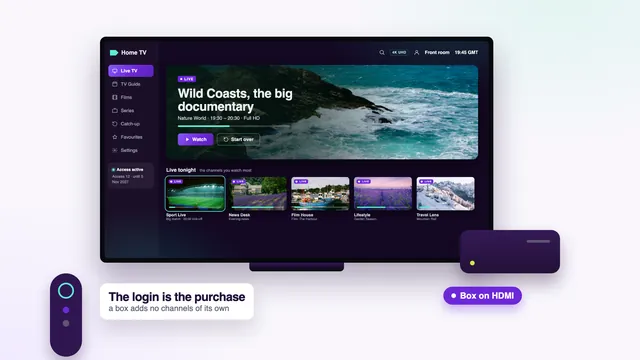
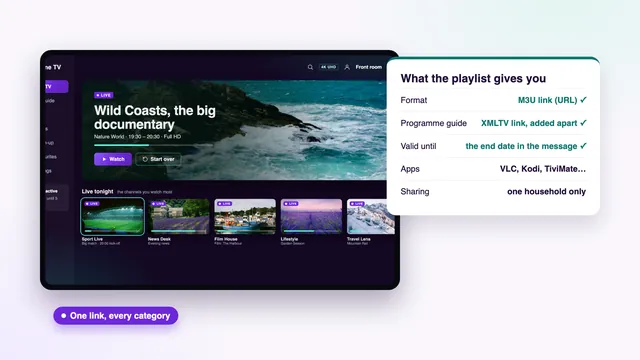
The order buys a login with an end date. One message brings the server URL with your own username and password, plus an M3U link, a programme-guide link and the date the access stops. Nothing is posted to you and nothing lands on the stick by itself: the stick needs a player app to read those details, and installing that app is your job, with the team on hand if you want help.
That means every question that decides whether the purchase works is about the little device behind your TV. Which model is it? How much room is left on it? Will it accept a player from outside the Appstore? Is its connection good enough at nine in the evening? Each one has a quick answer on the stick itself, and none of them needs a login to check.
Anyone about to buy IPTV for Firestick viewing can work through them in about a quarter of an hour; the sections below take them in the order that saves the most time. If you would rather see the whole order first, from choosing a plan to the first channel, the page on how to buy IPTV step by step covers it. The home page explains in two minutes how to buy IPTV in one checkout, with the four prices and the order receipt.
Which Fire TV models suit the login
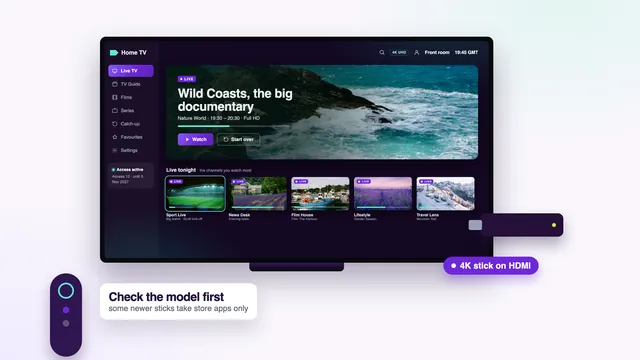
Amazon has sold several generations of sticks under very similar names, so read the model from the device rather than from memory or the receipt. Open Settings › My Fire TV › About: the model name sits at the top of that screen.
Fire TV Stick 4K, Fire TV Stick 4K Max and Fire TV Cube
These three show 4K with HDR whenever the channel or title carries it, and they decode HEVC (H.265), the compression most 4K streams use. For a 4K picture, plug them into an HDMI port on a 4K TV that supports HDMI 2.0 or newer. An older port, or a cheap HDMI switch in between, can hold the signal back to a lower resolution.
The 4K Max and the Cube feel quicker when you scroll a long channel list or jump from the guide to a film, which is worth having when the catalogue runs to more than 40,000 live channels. The plain 4K stick still copes well with one stream at a time.
Fire TV Stick Lite and the older basic stick
These top out at Full HD. That is no drawback on a kitchen or bedroom set that is Full HD anyway: about 10 Mb/s keeps Full HD clean and 5 Mb/s holds HD. What they cannot do is show the 4K titles in 4K, so a Lite is the wrong buy for a 4K lounge TV.
Sticks that run Vega OS
Amazon has started shipping some newer sticks with Vega OS rather than the Android-based Fire OS. On Vega OS only Appstore apps can be added, and the player most people use with this login is not among them. If you are about to order a new stick for this purchase, look for the operating system on the product page first; a familiar family name is no proof of which system is inside.
If the stick is already at home and you are unsure what it runs, send the name shown under About to the team through the contact page before paying. They will tell you which players that model can take, or which other screen in your home is the better candidate.
| Stick | Highest picture | Player from outside the Appstore | Where it fits |
|---|---|---|---|
| Fire TV Stick 4K | Up to 4K, HDR when the source has it | Yes, through Downloader | The main 4K set |
| Fire TV Stick 4K Max | Up to 4K, HDR when the source has it | Yes, through Downloader | A 4K set, long channel lists, quick zapping |
| Fire TV Cube | Up to 4K, HDR when the source has it | Yes, through Downloader | The main TV, especially where a cable reaches |
| Fire TV Stick Lite or basic stick | Full HD | Yes, through Downloader | A Full HD set in a bedroom or kitchen |
| Any stick running Vega OS | Depends on the model | No: Appstore apps only | Ask the team before you pay |
Free storage: the check most buyers skip
Sticks ship with modest internal storage, and years of app updates, screensavers and forgotten games eat into it. A player needs room for itself and for the guide data and posters it keeps, so a nearly full stick usually shows itself as a player that closes on its own, or a guide that never finishes loading.
Look under Settings › My Fire TV › About › Storage. If free space is low, open Settings › Applications › Manage Installed Applications and remove whatever you no longer open. Clearing the cache of the largest apps from the same menu frees a little more.
Then give the stick a fresh start (My Fire TV › Restart, in Settings). One that has slept for weeks often has a system update waiting, and it is better to let it finish now than halfway through your first evening.
The player, and how it gets onto the stick
The usual player on Fire TV is IPTV Smarters Pro, the « Smarters Pro » app by Tech Smarters Private Limited. It holds no channels of its own and simply logs in with the details you buy. Amazon’s Appstore does not carry it; instead it goes on through Downloader, a free AFTVnews app you will find in that same Appstore.
Installing it, step by step
- Install Downloader from the Appstore. Search for it by name and check that the developer shown is AFTVnews.
- In Settings, open My Fire TV, then Developer options, and turn on Install unknown apps for Downloader.
- No Developer options entry? Go to My Fire TV › About, highlight the device name and press select seven times in a row. The menu then shows up.
- Open Downloader and enter the download link that comes with your login. We never print it on this site, and you should not copy one from a video or a forum thread.
- Install the player, open it and choose the Xtream Codes login.
Steps one to three can all be done tonight, before you buy. If Downloader installs and you can switch it on under Install unknown apps, the stick will take the player. If those menus refuse to appear even after the seven clicks, write to the team with the model name before you order anything.
Other players that run on Fire TV
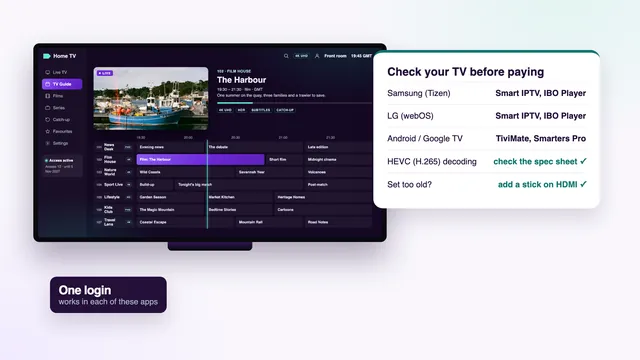
TiviMate is a player made for Android TV and Fire TV, free with paid premium options; its grid guide suits people who mostly watch live channels. Kodi also works, with the PVR IPTV Simple Client add-on in place. Whichever you pick, take it from a store or from the link the team sends, and read the developer’s name, because look-alike apps exist.
Xtream login or M3U link: what to type on a stick
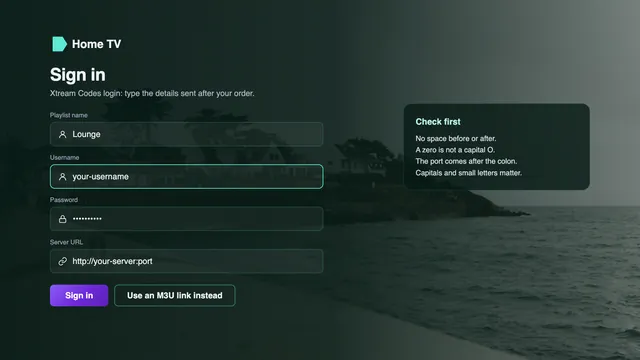
Your message holds both, and on a stick the Xtream Codes login is the easier route. It is three short fields, typed once with the remote, after which the player pulls in live TV, films, series and the seven-day guide on its own. The M3U link is one long address, which is tedious on an on-screen keyboard, and the guide then needs its own link as well.
| Xtream Codes login | M3U playlist link | |
|---|---|---|
| Fields to enter | Server URL, then username and password, for example http://your-server:port | One long web address |
| Programme guide | Loads with the login: seven days, in UK time | Added separately with the XMLTV link |
| Films and series | In their own menus | Depends on the player |
| Typing with the remote | A minute or two | Slow, and one wrong character breaks it |
| Usual players on Fire TV | Smarters Pro, TiviMate | Kodi, or a player that reads playlists only |
Amazon’s remote app for phones has a keyboard, which makes either one quicker to enter. Copy the details from the message exactly: the username and password are case-sensitive, and the server URL needs its port number.
If you want to know what the playlist link holds and when it beats the Xtream login, the guide to buying an IPTV playlist (M3U) goes into it.
Wi-Fi, Ethernet and the evening peak
A stick behind the TV is often the worst-placed device in the house for Wi-Fi: low down, behind a metal panel, two rooms from the router. So run a speed check on the stick itself, not on your phone, at about nine in the evening. Aim for figures that hold without dipping: around 25 Mb/s if you want 4K, about 10 for Full HD and half that for plain HD.
- Use the short HDMI extender that comes in the stick’s box, so the stick hangs a few centimetres clear of the TV’s back panel.
- Join the router’s 5 GHz band if the stick sees both bands. It carries more at short range.
- If a cable can reach, fit an Ethernet adapter made for Fire TV, which sits between the power lead and the stick. A wired link is the steadiest of all.
- Where the router is far away, a powerline kit or a mesh point near the TV usually cures a weak signal.
Most UK homes stream between about seven and eleven at night, and Saturdays, Sundays and big match nights are the heaviest. Several servers split the load during those hours. A stick that holds steady in that window will hold steady at any time. Live channels also trail the broadcast by anything from a few seconds to around thirty; that gap is normal for streams and is not the stick misbehaving.
Buy IPTV for Firestick: which plan fits one stick or two
The channel list (over 40,000), the film and series library (120,000 titles) and the picture quality are identical in all four plans. Only the length and the number of screens playing at once differ.
- Access 3 (£29, 3 months, one screen): a sensible first order if you want to see how your stick and your broadband cope before paying for a year.
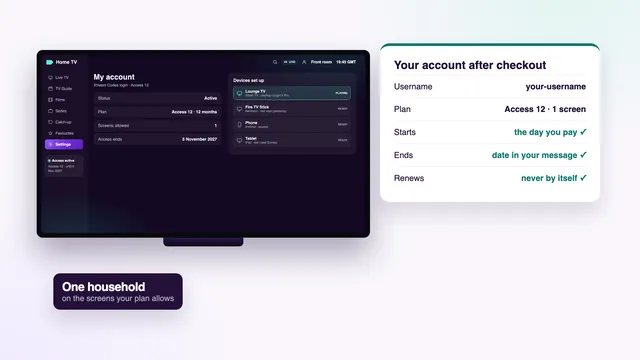
- Access 12 (£49, 12 months, one screen): 13p a day, or roughly £4.08 a month. The plan we suggest for a single stick.
- Access 12 Duo (£79, 12 months): two sticks can play at the same moment, say one on the lounge TV and one in the bedroom.
- Access 24 (£89, 24 months, one screen): the cheapest per month, at £3.71, for anyone happy to pay two years up front.
Two sticks playing together is the most any plan covers, so if you buy IPTV for Firestick use on more sticks than that, ask the team before ordering. You pay once in pounds, by debit or credit card or PayPal. There is no renewal: on the end date the access simply stops. The plans sit side by side in the price table on the home page, and the IPTV packages page adds the cost per day and the full contents of the order message.
How you pay makes no difference to the stick. If you want to know what the card step looks like, including the bank’s approval prompt, read the guide to paying for IPTV by credit or debit card.
What to check on the first evening
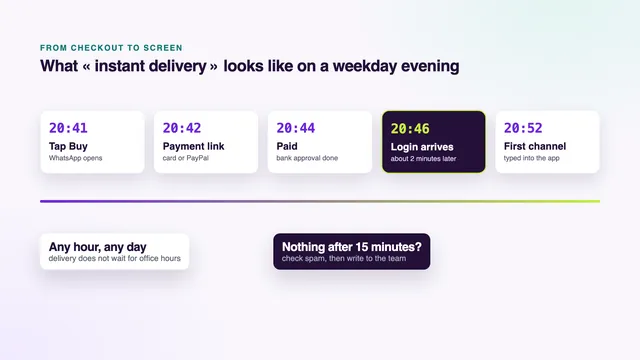
The login reaches WhatsApp or your inbox about 2 minutes after the payment is confirmed; the guide on how quickly the login arrives explains what happens in those minutes. Once it is typed into the player, go through these checks the same evening, while the 7-day window is still wide open.
- Open a news channel and leave it running for five minutes. It should start within seconds and stay smooth.
- Open the guide and compare a programme’s start time with your clock. If everything is one hour out, set the player’s EPG time offset; the guide runs in UK time, GMT in winter and BST from late March to late October.
- During the evening rush, after seven, watch ten minutes of live football, rugby or darts. Where the source carries it, live sport is sent at 50 frames per second, so the motion should look fluid rather than juddery.
- On a 4K stick with a 4K TV, start a title marked 4K and press the TV’s info button to see the resolution it receives.
- Pick a channel with catch-up and play something from earlier in the week; most go back up to seven days.
- Find the end date in the player’s account screen or in the message, and put a reminder in your phone a week before it.
If something fails, message the team at any hour with the stick model and what the screen shows; most problems are a mistyped field or a weak Wi-Fi signal. The money-back rule is narrow and written down in the refund policy: your money back within 7 days of payment when the login does not arrive, or when no screen shows a picture even with the team’s help.
Frequently asked questions
Can I buy IPTV for Firestick and set it up myself?
Yes. Most people install the player through Downloader and type the Xtream login in one sitting, using the steps above. If anything stalls, the team guides you on WhatsApp or by email, 24/7, in English.
Does the login work on a Fire TV Stick Lite?
Yes, up to Full HD, which is the Lite’s ceiling. It suits a Full HD set in a bedroom or kitchen. For 4K titles in 4K you need a Fire TV Stick 4K, a 4K Max or a Fire TV Cube on a 4K TV.
My stick runs Vega OS. Can I still use the login?
Vega OS installs apps from the Appstore only, so the usual player cannot go on. Send the model name to the team before you pay and they will tell you what that stick can run. Often another screen in the home, such as a Google TV set or a phone, is the simpler place for the login.
Which plan should I choose for two sticks?
If both sticks will play at the same time, Access 12 Duo at £79 for 12 months covers two screens at once. Access 12, Access 3 and Access 24 cover one screen each.
Is the download link for the player printed anywhere on the site?
No. The link for Downloader comes with your login message, and the team can send it again if you lose it. Do not use codes taken from videos or forums, because you cannot know what they install.
What happens on the stick when the plan ends?
Channels stop loading on the end date, and no further payment is taken. Ordering again brings a fresh login, which you enter in the player already on the stick; the app itself does not need reinstalling.