Buying guide
Buy IPTV Account Access: What You Hold Once You Have Paid
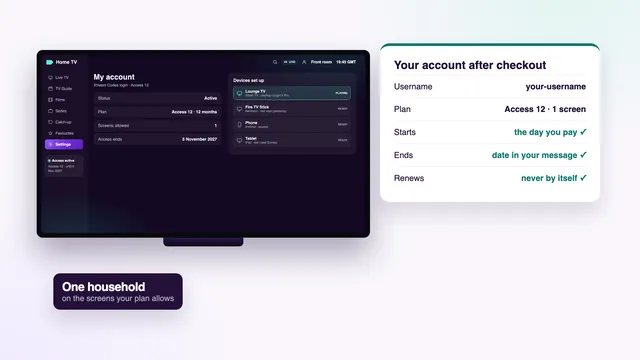
When you buy IPTV account access from Buy IPTV 4K, you do not get a profile on a website or a card on file: you get a short message with five details that let a player reach the server until a fixed date. This guide takes each detail in turn, then covers screens, devices, the household rule, the end date, keeping the details safe and what the team can and cannot change.
Buy IPTV account access: the five details you receive
The word account can mislead. There is no customer area on our site, no profile to fill in and no card stored anywhere. The account lives on the server, and what reaches you is the set of details that proves to that server you have paid.
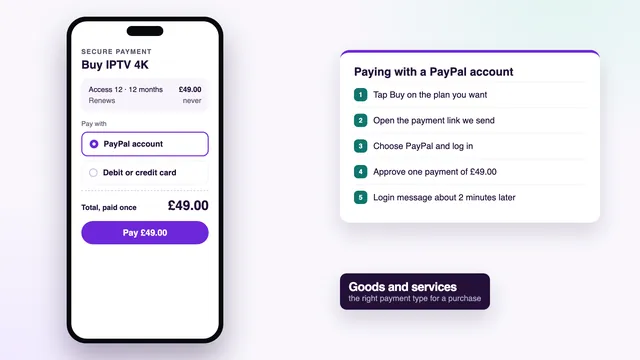
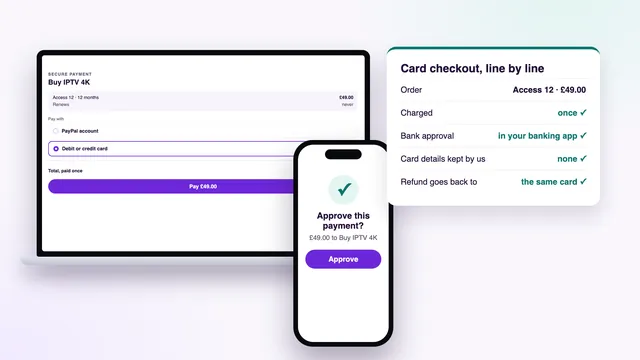
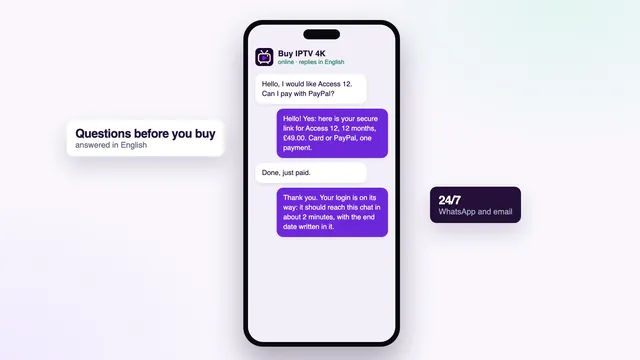
The order itself is one conversation: tap Buy on a plan, WhatsApp opens with the plan and its price already written, and the team answers with a secure link to pay by debit or credit card or PayPal. The order steps in full have their own page, and the two ways to pay are covered in paying with PayPal and paying by credit or debit card. This guide starts where the payment ends.
| Detail | Looks like | What it does | Worth knowing |
|---|---|---|---|
| Username | your-username | Names your plan on the server | Type it exactly as sent, capitals included. |
| Password | your-password | Proves the request comes from you | Only the team can reset it, and only when you ask. |
| Server URL | http://your-server:port | Tells the player where to send its requests | Copy it whole: a missing port number breaks it. |
| End date | a date in your message | The last day the server accepts the login | Fixed when the order is made. |
| Screens | 1, or 2 with Access 12 Duo | How many streams can play at the same moment | Set by the plan you chose. |
Two links built from the same login
Under those five details sit the M3U playlist link and the programme-guide (XMLTV) link. Both contain the same username and password, so they open the same account rather than a second one. Players that cannot take a three-field login use the M3U link instead; the guide to the M3U playlist link sets out the difference.
Typing the details without mistakes
- Copy and paste from the message wherever the device allows it. On a TV, type slowly and read each field back before you press the login button.
- Watch for characters that look alike: a capital I and a small l, a zero and a capital O.
- Leave no space at the end of a field. A pasted space is invisible and enough to have the login refused.
- The server URL needs its http:// and its port, the digits after the colon.
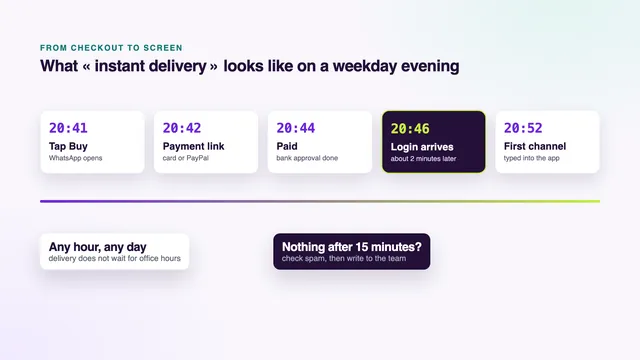
The minutes between payment and message are covered in the guide to instant delivery, including what to do if nothing has arrived.
Screens: how many can play at the same moment
A screen is a stream in progress; installing the app on a device does not use one up. You can type the login on the living-room TV, a stick in the bedroom and a tablet in the same home, and only what is playing at a given moment counts.
| Plan | Screens playing at once | Length | Per month | Paid once |
|---|---|---|---|---|
| Access 3 | 1 | 3 months | £9.67 | £29 |
| Access 12 | 1 | 12 months | £4.08 | £49 |
| Access 12 Duo | 2 | 12 months | £6.58 | £79 |
| Access 24 | 1 | 24 months | £3.71 | £89 |
On a one-screen plan, starting a channel on a second device while the first is still playing usually brings an error on one of them, often worded as a connection limit. With Access 12 Duo, two streams can run side by side for the whole year.
A paused channel, or a player left open on a channel in an empty room, can still hold a screen. Press stop, or go back to the menu, before you move to another room.
There is no plan with three or four screens, and a one-screen account cannot be stretched to two. If you buy IPTV account access for a home where two people watch different things on most evenings, Access 12 Duo is the plan made for that; the IPTV packages page sets it beside the others.
Where to find your end date
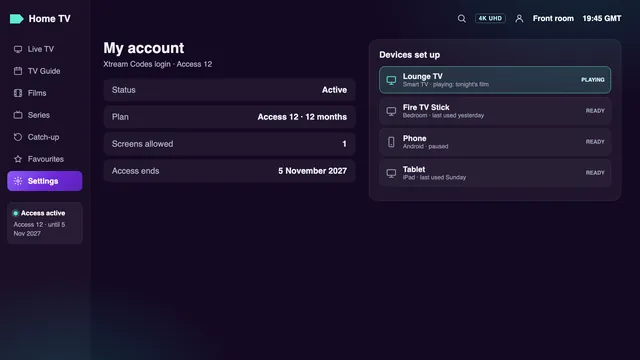
The reference is the order message, which states the end date in full, so keep it. Players that log in with Xtream Codes can usually show the date as well.
- Look for an item called Account, Account info, User info or Playlist info, in the settings or behind a profile icon on the home screen.
- That screen generally lists the status of the account, the end date (sometimes labelled expiry or expiration), and the connections allowed and in use.
- Players fed only with the M3U link show nothing of the sort, because a playlist file carries no dates.
- Smart TV apps with an activation of their own may display a date for that activation. It has nothing to do with the end of your plan.
If a date in a player looks odd, trust the message. Then add the end date to the calendar on your phone the day the details arrive, with an alert a week ahead. Nothing will be taken from your card or PayPal account on that day, so the alert is the only nudge you will get.
One household: who the account is for
Each account is sold for one home. The people who live there can use it on any device in the house, within the plan’s screen count.
Giving the details to anyone at another address, a relative included, or putting them anywhere public such as a forum or a group chat, can get the login suspended. A second home that wants to watch needs an order of its own.
Money back is narrow and written down. It applies for 7 days after payment, in two cases only: the details never reached you, or no screen would show a picture even with the team guiding you. Changing your mind is not among them, and the refund policy sets out both cases word for word.
Changing devices on the same account
A new TV, a new stick or a phone upgrade: the account follows you, because it is only a set of details. Nothing about changing devices needs you to buy IPTV account access again, and there is nothing to ask us to transfer.
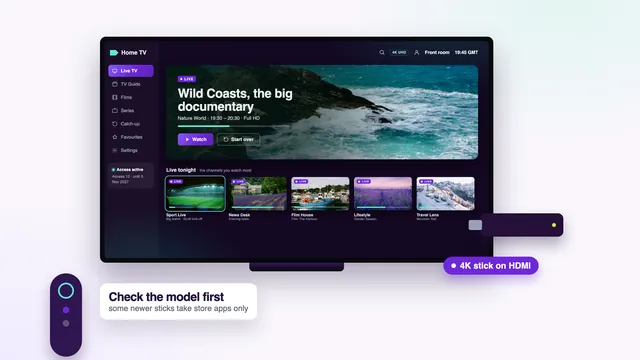
- Install a compatible player on the new device. Most come from the device’s app store; Fire TV sticks have a route of their own, covered in the stick guide below.
- Type the username, password and server URL, or load the M3U link if that is all the player accepts.
- Open a channel and check the guide times.
- On the old device, log out or delete the entry, so it cannot hold a screen by accident.
Smart TV apps tied to the set
Some Smart TV players link the playlist to the television rather than to the login. Smart IPTV needs a one-off activation per TV and receives the playlist through its website with the TV’s MAC address, while IBO Player ties it to a MAC address or device key. A new TV therefore means repeating that step for the new set, with the same account details. The Smart TV buying guide takes each make in turn, and the Fire TV stick guide covers sticks.
After a factory reset
A reset wipes the player and its settings, favourites included. The account itself is untouched on the server: install the player again and type the same details.
On the end date, and buying again
On the end date the server stops accepting the login. The player then shows an error, an empty list or channels that will not start; the wording depends on the app. No money leaves your account, no direct debit needs stopping and no contract needs ending: the plan simply runs out, as the cancellation page confirms.
A new login in the same apps
Carrying on means placing a new order, the same way as the first time. The new message brings a new username and password with an end date of their own, and the apps already on your screens stay where they are. Each time you buy IPTV account access, the end date that counts is the one in the newest message.
- In players that hold several logins, add the new one and delete the old, so you never open the expired entry by mistake.
- In players with room for one login, edit the existing entry and replace the three fields.
- Swap the M3U and guide links anywhere you used them.
- Favourites saved inside a player may not carry across to a new login; add back the few you use most.
A new order is also the moment to change plan: from Access 3 to Access 12, to Access 24 for the lowest price per month, or to Access 12 Duo if a second room now watches at the same time. The four plans and their prices sit on the home page.
Want the next plan ready before the current one ends? You can order whenever you like; ask the team how the dates will run for your order before you pay.
Keeping the account details safe
The details are worth the price of a plan to anyone who finds them, and they leak more often by accident than by theft.
- Keep the order message, or copy the details into a password manager or a private note.
- Do not post screenshots of the account screen or the login fields. Blur the username and password if you must show one.
- Treat the M3U link like the password itself, since it carries the password in plain text.
- Remove the login from any device you sell, give away or return to a shop.
If you think someone else has the details, ask the team for a password reset. The old password stops working, a new one arrives, and you type it on your own screens.
What the team can do for your account, and what it cannot
Before you buy IPTV account access, it helps to know where the team’s help starts and stops. They answer on WhatsApp and by email, 24/7, in English, before and after you pay.
| You ask the team to… | Answer | How it works |
|---|---|---|
| Resend the login message | Yes | The same details come again by WhatsApp or email. |
| Reset the password | Yes | A new password, M3U link and guide link arrive; the old ones stop working. |
| Guide you through a player | Yes | Step by step, screen by screen; a photo of the screen you are stuck on helps. |
| Confirm your end date | Yes | It is also in your message and, in most players, on the account screen. |
| Refund the order | When the rule applies | Inside 7 days of paying, when the details never came or no screen would play even with help. |
| Extend the end date for free | No | More time means a new order. |
| Add a screen beyond the plan | No | Two screens at once come with Access 12 Duo only. |
| Restore favourites or player settings | No | They are stored in the app on your device, not on our side. |
A first message is quickest to answer when it holds three facts: the plan, the device with the player you use, and what the screen shows. Contact the team by WhatsApp or email; for questions before an order, the home page explains how to buy IPTV once, with a written end date.
Frequently asked questions
Do I need to create an account on your website?
No. There is no customer area, no sign-up form and no card stored on our site. You order by WhatsApp or email, pay through a secure link, and the account details arrive in a message.
Can I put the account on more than one device?
Yes, on several devices in your home. Only one can play at a time with Access 3, Access 12 and Access 24, and two with Access 12 Duo.
Does the account renew by itself?
No. One payment (debit or credit card or PayPal) covers the whole plan, and access ends on the end date. Nothing more is taken unless you place a new order yourself.
If I buy IPTV account access again, do I keep my username?
Do not count on it. A new order comes with a new login and its own end date, which you type into the apps you already have.
I have lost my login message. What now?
Ask the team to resend it, by WhatsApp or email, at any hour. If you think someone else may have seen the details, ask for a password reset instead.
Can I add a second screen during the plan?
Not to a one-screen plan. Two screens at the same time come only with Access 12 Duo, which is a separate order. Ask the team before you buy it if you are unsure how the dates of the two plans will sit.