Buying guide
Buy IPTV for Smart TV: which sets run which players, and what to check first
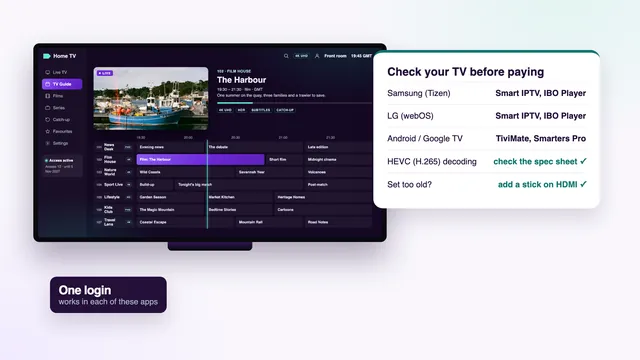
To buy IPTV for Smart TV viewing, start with the set rather than the plan: the login is identical on every screen, but each TV maker runs its own app store, and that store decides which players you can install. This guide takes Samsung, LG, Google TV and other sets in turn, explains MAC-address activation and the HDR differences, and lists the checks to make on the TV before you pay.
One login, many TVs: what changes from set to set
The access you pay for is the same whatever the screen: one message carrying the Xtream details (server URL, username, password), an M3U link, a guide link and an end date. A Samsung in the lounge and an older LG in the spare room read exactly the same details. What differs is everything around them.
Three things change from one TV to the next. The first is the store the player comes from, which depends on the maker and the system the set runs. The second is how that player is activated: some take the login typed on the TV, others link to the set’s MAC address from a website. The third is the picture: which HDR formats the panel shows and whether the app decodes 4K streams properly.
There is also the network, where a TV has one clear advantage over a stick: a socket on the back for a cable. Anyone who wants to buy IPTV for Smart TV use can check every one of these points on the set itself, in the order below. If you want the order itself explained first, the home page shows how to buy IPTV with one payment and no renewal.
Samsung (Tizen) and LG (webOS) sets
Samsung
Samsung TVs run Tizen and take apps from the Apps section of the home screen. Samsung’s app list differs by model and by the country a set was sold for, so whether IPTV Smarters Pro shows up is something to search for by name rather than trust to a list found online. IBO Player and Smart IPTV are the two other names to look for.
On the picture side, Samsung supports HDR10+ but not Dolby Vision. If a source carries Dolby Vision, a Samsung set will not show that format; that is a limit of the panel, not of the login or of the player.
LG
LG sets run webOS and use LG’s app store on the home screen. The same three players are the ones to search for, with the same caveat for Smarters Pro: whether it is listed depends on the model and the country.
LG’s OLED and QNED ranges support Dolby Vision. It only matters when the source offers it and the player passes it to the panel, but on those sets you lose nothing in format terms by using the TV’s own app.
Reading the model and its age
The model number is printed on a sticker at the back of the set and shown in the TV’s support or « About this TV » menu. Note it down, along with the date of the last software update if the menu shows one. An app may need a newer version of Tizen or webOS than an older set runs, and the store will then either hide it or refuse to install it.
MAC-address activation: how Smart IPTV and IBO Player link to your TV
Some TV players never ask you to type a login with the remote. They show an identifier when they first open, and you send your playlist to that identifier from the app maker’s website, using a phone or a laptop. It spares you a long session with an on-screen keyboard.
Smart IPTV
Smart IPTV is activated once for each TV, and only once. The app’s start screen shows the TV’s MAC address. On the Smart IPTV website you enter that address together with the M3U link from your login message, then reopen the app on the TV and the channel list loads. The activation belongs to that set, so a second TV, or a replacement after a breakdown, needs its own.
IBO Player
IBO Player links the playlist to the TV’s MAC address or to a device key, both shown when the app starts. You add the playlist on IBO Player’s website against that address. The app maker sets its own activation terms, so read them on its site before you rely on it; they are not ours to change.
- Install the player from the TV’s store and open it once. Write down the MAC address, and the device key if one is shown.
- On a phone or laptop, open the app maker’s website and find its playlist upload page.
- Enter the MAC address (and key), then paste the M3U link from your login message.
- Reopen the player on the TV. The channels load in country order, with the UK first.
- If the guide is empty, add the XMLTV guide link from the same message in the player’s settings.
Both identifiers are typed on the app maker’s site, not on ours, and the playlist link you paste there is your login, so keep it within your household. For more on what that link contains, see the IPTV playlist (M3U) guide.
Google TV and Android TV sets
Many sets from other makers run Google TV or Android TV, and they are the simplest of all for this purchase. Players come from Google Play, the same store as on an Android phone. IPTV Smarters Pro is listed there, and so is TiviMate, a player designed for TV screens, free with paid premium options. VLC (free) opens an M3U link, and Kodi does too once the PVR IPTV Simple Client add-on is installed.
You can tell you own one of these sets when the home screen shows Google’s apps and the settings mention Google TV or Android TV. Check that Google Play opens and that the system has updated within the last year or so, because a set left behind by its maker may not be offered the newest version of a player.
On these sets the Xtream login goes straight into the player with the remote: the server URL (in the form http://your-server:port), then the username and password. The seven-day guide loads with it, so there is no separate guide link to add.
Other sets, older models and TVs with no store
Sets from other makers often run a system of the maker’s own. Their stores usually carry far fewer players, and some carry none that read an Xtream login or a playlist. Older Samsung and LG sets can hit the same wall when the players they list need a newer system than the TV has.
None of this stops you watching, as long as the TV has a free HDMI port. A stick or a box plugged into it does the decoding, and the TV just shows the picture. The TV’s own formats still apply, though: a stick can pass Dolby Vision to a set that supports it, but it cannot add Dolby Vision to a set that lacks it.
4K, HDR and HEVC: what your set can actually show
A 4K picture needs four things at once: a source produced in 4K, a 4K panel, a player app able to use the TV’s hardware HEVC (H.265) decoder, and broadband that holds about 25 Mb/s. Almost every 4K TV has that decoder; the question is whether the player app uses it. Channels and titles not produced in 4K play in HD or Full HD, whatever the TV.
| TV family | Where players come from | Players to look for | HDR formats | Login entry |
|---|---|---|---|---|
| Samsung (Tizen) | The Apps panel | IBO Player or Smart IPTV; Smarters Pro where listed | HDR10, HDR10+; no Dolby Vision | MAC address via the app’s website, or typed |
| LG (webOS) | LG’s app store | IBO Player or Smart IPTV; Smarters Pro where listed | HDR10; Dolby Vision on OLED and QNED | MAC address via the app’s website, or typed |
| Google TV / Android TV | Google Play | Smarters Pro, TiviMate, VLC, Kodi | Depends on the set | Xtream login typed in the player |
| Other systems | The maker’s own store | Often few or none | Depends on the set | Often a stick or box instead |
You only see HDR or Dolby Atmos if the stream carries it and every link in the chain, player and TV, can handle it. Sport is carried at 50 frames per second when the source has it. If motion still looks smeared on a TV app, try the TV’s motion-smoothing setting off and on before blaming the stream; it changes the look of fast football more than any other setting.
Buy IPTV for Smart TV: the checks before you pay
Each of these takes a few minutes with the remote and costs nothing. Together they tell you whether your TV is ready, or whether a stick belongs on the shopping list first.
1. The app store, searched by name
Search for Smart IPTV, IBO Player and IPTV Smarters Pro, or for TiviMate on a Google TV set. Check the developer’s name, since look-alike apps exist. Install one and open it: if it reaches its login screen or shows a MAC address, the TV side is ready.
2. Model year and updates
Read the model number and the last update date. A set that still receives system updates will keep receiving player updates too; one that stopped years ago is a candidate for a stick.
3. 4K and HEVC
If 4K matters to you, confirm the panel is 4K and the HDMI or app path supports it. The TV’s specification sheet lists HEVC among the supported video formats, usually next to HDR.
4. The TV’s own Ethernet port
Most smart TVs have an Ethernet socket on the back, and it is worth using. The built-in Wi-Fi sits behind the panel, often far from the router, while a cable gives a steady link at any hour. Many TV sockets run at 100 Mb/s rather than gigabit, which is still four times what one 4K stream needs.
Then measure the speed on the TV itself, through a speed-check app or the TV’s browser, at about nine in the evening. A 4K stream wants about 25 Mb/s that does not dip; Full HD gets by on around 10 and HD on 5. If no cable can get there, put the TV on the router’s 5 GHz band when it is within a room or so, or add a powerline kit or a mesh point beside the set.
5. The plan for the number of TVs
For one TV, Access 12 at £49 gives a full year and works out at 13p a day (£4.08 per month). Access 3 at £29 is the shorter first order, Access 24 at £89 has the lowest monthly cost, and Access 12 Duo at £79 lets two TVs play at the same time. All four carry the same channels and library; compare them in the plan table or on the IPTV packages page.
When a stick is the better buy
Most people who buy IPTV for Smart TV screens would rather use the TV’s own app, and it is the tidiest setup: one remote, no extra power lead. But a stick wins in several common cases.
- The TV’s store lists no player that reads an Xtream login or an M3U link.
- The set no longer receives system updates and its menus have slowed down.
- You want the same player and the same menus on every TV in the house.
- The TV app reloads the channel list every time it opens, and the wait annoys you.
- The set has HDMI 2.0 ports but its built-in apps do not play 4K streams smoothly.
A Fire TV Stick 4K or 4K Max costs far less than a new TV (prices vary by store, at the time of writing). Check that the model does not run Vega OS before you order one, and read the guide to buying IPTV for a Firestick for the checks on the stick itself. If you are weighing a separate box instead, the guide on whether to buy an IPTV box sets out what one adds.
Once the screen is settled, the order is the same for everyone. The page on how to buy IPTV walks through the payment link and the message that follows, and the guide to paying for IPTV with PayPal covers that route. Questions about a particular TV model are welcome before you pay, through the contact page.
Frequently asked questions
Can I buy IPTV for Smart TV use without any extra device?
Yes, if your TV’s store lists a compatible player such as Smart IPTV, IBO Player, IPTV Smarters Pro or TiviMate. Install it and open it before you pay. If none is listed, a stick in a spare HDMI port is the usual fix.
Why does Smart IPTV ask for my TV’s MAC address?
Smart IPTV links the playlist to the TV rather than to a typed login. You enter the MAC address shown in the app, together with your M3U link, on the Smart IPTV website, and the TV loads the list. You activate it once, and each TV separately.
Is IPTV Smarters Pro on Samsung and LG TVs?
It depends on the set: the listing varies with the model and the country the TV was sold for. Search the TV’s store by name and check that the developer reads Tech Smarters Private Limited. When it is missing, IBO Player and Smart IPTV are the two to try next.
Will my Samsung TV show Dolby Vision?
No. Samsung supports HDR10+ but not Dolby Vision, and no app or stick can add a format the panel lacks. LG’s OLED and QNED ranges do handle Dolby Vision when the source offers it.
Should I use Wi-Fi or a cable for the TV?
A cable into the TV’s Ethernet port is the steadier choice, especially at the evening peak. If a cable cannot reach, use 5 GHz Wi-Fi close to the router, a powerline kit or a mesh point, and measure the speed on the TV itself.
Can one plan cover the TV in the lounge and the one in the bedroom?
Yes, if you choose Access 12 Duo: £79 for 12 months, with both TVs able to play at once. The other three plans cover one screen each, and every plan has the same channels and films.