Buying guide
Buy IPTV Playlist Access: What the M3U Link Gives You
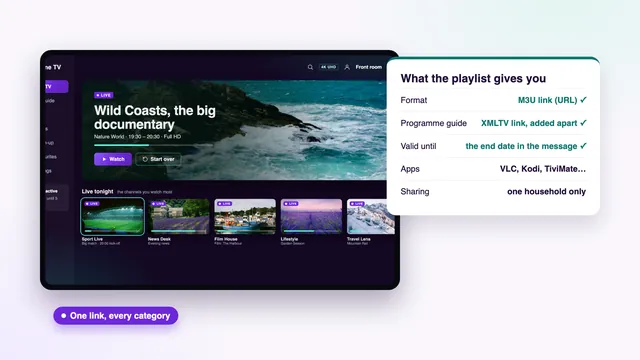
When you buy IPTV playlist access, the thing you pay for is time on a server, not a file: the M3U link in your order message is a key that rebuilds the channel list each time a player opens it. This guide explains what the link holds, how it differs from the Xtream Codes login sent beside it, which players accept it, how long it keeps working and how to load it on a screen, using placeholders only.
Buy IPTV playlist access: what the money pays for
A playlist sounds like something you own once it is downloaded, the way a song file is yours. In practice it behaves more like a season ticket. The M3U file is plain text, a couple of lines per channel, and not one of those lines holds a picture. Each line is an address that sends your player to a server, and the server answers only after two checks: is the login inside the address valid, and has its end date passed?
Most people who buy IPTV playlist access never open the file at all. The player fetches it from the link, reads it and builds the channel list on screen. What you are really paying for is how long the server keeps saying yes, and how many screens it says yes to at the same moment. At Buy IPTV 4K that comes down to four plans:
- Access 3: 3 months, 1 screen, £29 paid once (works out at £9.67 a month)
- Access 12: 12 months, 1 screen, £49 paid once (works out at £4.08 a month)
- Access 12 Duo: 12 months, 2 screens at the same time, £79 paid once (works out at £6.58 a month)
- Access 24: 24 months, 1 screen, £89 paid once (works out at £3.71 a month)
Whichever you pick, the content does not change: every plan carries 40,000+ channels and 120,000 on-demand titles at one picture standard. What differs is time and screens, which is why the IPTV packages page sets them side by side on cost per month and per day.
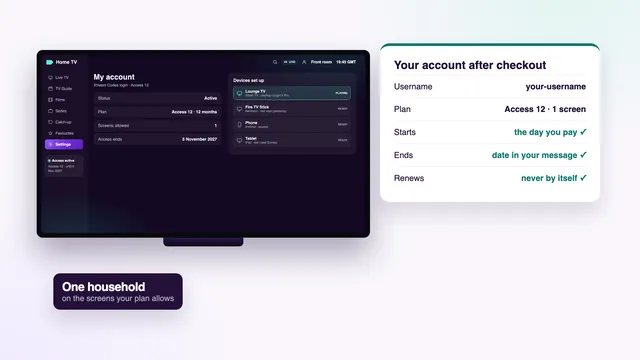
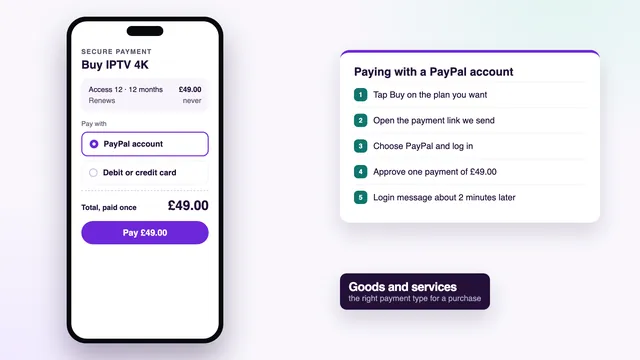
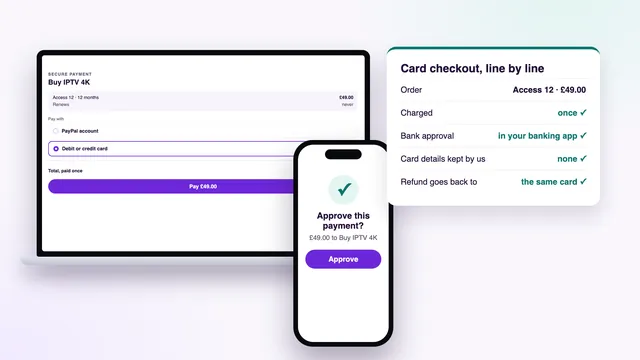
Payment is a single checkout by debit or credit card or PayPal, completed on a secure page the team links to once you have messaged them. Nothing renews by itself: when the end date comes, the server stops answering and no money moves. The way the shop works as a whole, receipt and refund rule included, is summed up under buy IPTV with one payment and an end date.
What the order message holds
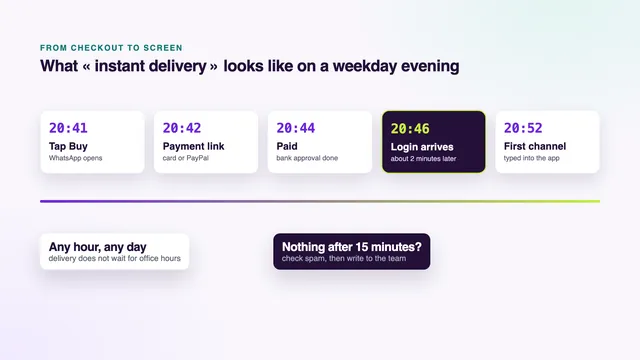
One message reaches you by WhatsApp or email about 2 minutes after the payment is confirmed. It carries six items:
- the username;
- the password;
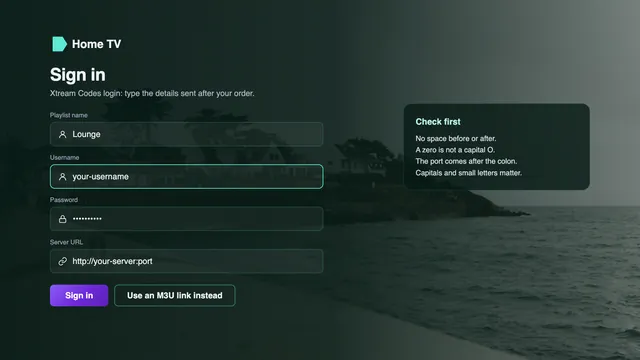
- the server URL, which together with the first two makes up the Xtream Codes login;
- the M3U playlist link;
- the programme-guide link, in XMLTV format;
- the end date of your plan.
The playlist link is assembled from the same username and password as the Xtream login, so the two are different doors into one plan, not two plans. Whichever door a player uses, each channel that is playing counts as one screen against your limit.
What is inside an M3U file
Paste the playlist link into a browser on a laptop and you normally get a download: a text file that can weigh several megabytes, since it describes every channel in the list. Open that file in a text editor and three kinds of line appear, repeated thousands of times.
| Line | Looks like (placeholders) | What the player does with it |
|---|---|---|
| Header | #EXTM3U | Recognises the file as a playlist. Only the very first line carries it. |
| Description | #EXTINF:-1 tvg-id="channel-id" tvg-logo="…" group-title="Group name",Channel name | Takes the name shown on screen, the logo, the group the channel belongs to and the code that matches it to the guide. |
| Address | http://your-server:port/your_username/your_password/stream-number | Calls this address when you press OK. The server checks the login inside it before sending a single frame. |
That last row explains two things covered further down: every address in a copy saved on a USB stick still has to ask the server, so the copy stops on the end date, and your username and password sit in plain view inside the link.
The group-title field is where the order of the list comes from: countries first, categories inside each, British groups at the top. A player that understands groups turns them into folders; a basic one shows one long column.
M3U link or Xtream Codes login: which to use
Both arrive in the same message for the same price, so the choice depends on the player and the screen, not on what you order. As a rule of thumb, reach for the Xtream login whenever the app has fields for it, and save the M3U link for apps that accept nothing else.
| M3U playlist link | Xtream Codes login | |
|---|---|---|
| What you enter | One long address | Three short fields: username, password, server URL |
| With a TV remote | Slow to type, easy to mistype | Quicker, and each field can be checked |
| Live TV, films, series | Sorting depends on the player; some show one long list | The player builds a section for each |
| Programme guide | Many players need the guide link added separately | Loads with the login: 7 days, UK time |
| Catch-up | Depends on the player; often missing | Available where a channel offers it, typically a week back |
| End date on screen | Not shown, since the file holds no dates | Most players show it on an account screen |
| If it leaks | One copied line opens your plan | Someone would need all three details |
| Accepted by | Nearly every player, VLC and Kodi included | IPTV Smarters Pro, TiviMate, XP IPTV and most dedicated players |
Which door suits which screen
The M3U link earns its place in three cases: VLC on a laptop, for a live channel at a desk; Kodi, whose PVR IPTV Simple Client add-on is built around playlists; and Smart TV apps such as Smart IPTV and IBO Player, which take the playlist through their own website, so you paste the long link once on a phone and the TV picks it up. Everywhere else, and above all on the TV you use every evening, the Xtream login wins: the player sorts live TV, films and series, fetches the guide itself and can show the end date.
The programme-guide link (EPG and XMLTV)
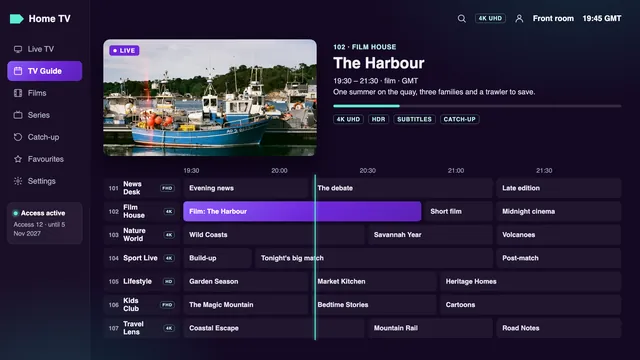
The last address in your message is the guide. It points to an XMLTV file: a structured list of programmes with their start and end times, covering seven days. EPG, short for electronic programme guide, is the name for what the player draws from it: the grid, the now-and-next bar, the line of text under a channel name.
The player pairs the two files through the tvg-id code you saw in the playlist’s description lines. Where the codes match, listings land under the right channel. Where a channel’s source carries no listings, its row simply stays empty.
Adding the guide to a player
- With the Xtream login there is nothing to add: the guide comes with it.
- TiviMate running on the M3U link may pick up listings by itself; if the grid stays empty, add the guide address under its EPG sources.
- In Kodi, paste it into the EPG part of the PVR IPTV Simple Client settings, next to the playlist address.
- In VLC there is no guide grid, so the link has no use there.
When the times are one hour out
Listings follow UK time, which means GMT in winter and BST between the final Sundays of March and October. If every programme starts an hour early or late, check the device’s own time zone first, then use the player’s EPG time offset setting to shift the grid by one hour. The offset only changes the display; nothing changes on the server.
If the player lets you, set it to refresh the guide once a day. A guide left alone for a week runs out of listings and the grid goes blank from the right-hand side.
Players that load an M3U link
We do not publish or sell any player, box or stick. The playlist works in any app that reads the standard format. These are the common ones at the time of writing; prices of paid options vary by store.
| Player | Runs on | How the M3U link goes in | Worth knowing |
|---|---|---|---|
| VLC | PC, Mac, Android, iOS | Open Network Stream (Media menu on a computer) | Free. Plays the list; no guide grid, no catch-up section. |
| Kodi | Computers, Android devices and more | PVR IPTV Simple Client add-on, Remote path setting | Paste the XMLTV link in the same add-on’s EPG settings. |
| TiviMate | Android TV and Fire TV | Add playlist, then the M3U option (an Xtream option sits beside it) | Free to install; some features sit behind its paid premium. |
| IPTV Smarters Pro | Android and Apple phones, tablets and TVs, plus Macs with Apple silicon | The playlist URL option on the add-user screen | Free download, optional in-app Premium. The developer should read Tech Smarters Private Limited: look-alike apps exist. |
| Smart IPTV | Samsung and LG TVs | Sent from the app’s website with the TV’s MAC address | Needs a one-off activation per TV. |
| IBO Player | Smart TVs and other devices | Added on its website against the MAC address or device key the app displays | Read the address off the TV twice before saving. |
XP IPTV and other players that take an Xtream login work too. If you buy IPTV playlist access mainly for a TV, the device decides more than the format does: which apps Samsung, LG and Google TV sets run goes make by make, the Fire TV stick checklist covers sticks, and whether an IPTV box is worth buying looks at what a separate box adds.
Loading the playlist, step by step
Every value below is a placeholder. Your real ones are in your order message, and nobody else needs to see them.
- Find the M3U line. In the message it begins with your server address and contains
get.php, for examplehttp://your-server:port/get.php?username=your_username&password=your_password&type=m3u_plus. Copy the whole line: one missing character at the end breaks it. - Get it onto the device. On a phone or computer, paste it in directly. On a TV, use the app’s website if it works that way, or type the Xtream login instead, which is far shorter.
- Pick the URL option, not the file option. Players call it Remote path, M3U URL, Add playlist or Network stream. A loaded file never updates, so changes to the list would pass you by.
- Give it a clear name. The plan and the month it ends, for instance, so an old entry is easy to spot later.
- Add the guide. The XMLTV link looks like
http://your-server:port/xmltv.php?username=your_username&password=your_password. Paste it wherever the player asks for an EPG source. - Let the first load finish. A list of this size takes longer the first time, and longer again on an older TV. Leave the app open until the groups appear.
- Check one channel and the clock. Open a UK news channel, compare the guide with the time on your phone and correct the EPG offset if it is one hour out.
VLC on a computer
Open VLC, choose Media, then Open Network Stream, paste the link and press Play. The first channel starts; open the playlist view from the View menu to see the rest. On Android and iOS the matching option is called Network stream or New stream, depending on the version.
Kodi
Go to Add-ons, then Install from repository, then PVR clients, and install PVR IPTV Simple Client. In its settings, set the location to Remote path (Internet address) and paste the M3U link, then paste the XMLTV link in the EPG section. After a restart, the TV entry on Kodi’s home menu holds the channel list; listings arrive a little later.
If a screen does not match what is written here, write to the team: setup help on WhatsApp or by email costs nothing, 24/7, in English. The whole route from order to first channel is laid out in how to buy IPTV, from checkout to the first channel.
How long the link lasts
Exactly as long as the plan: until the end date written in your order message. Until then the player re-reads it whenever it updates the list, and nothing needs renewing on your side.
| What happens | Does the M3U link change? | What you do |
|---|---|---|
| Normal use during the plan | No | Nothing. Let the player refresh the list now and then. |
| The team resets your password at your request | Yes, the password is part of it | Paste the new link, and the new guide link, on every screen. |
| You move to a new TV or stick | No | Load the same link on the new device and delete it from the old one. |
| The end date passes | No, but the server stops answering | Nothing to cancel; no further payment is taken. |
| You order again | Yes, a new order brings a new login | Swap the old link for the new one in the same apps. |
After the end date, players react in their own way: an empty list, a login error, or channels that spin and stop. None of this means the app is broken. When you buy IPTV playlist access again, the new message carries a new username, password and links; the apps on your screens stay put and only the details inside them change. What an IPTV account holds, and what happens on its end date covers that moment in detail, and the four plans show what each length costs.
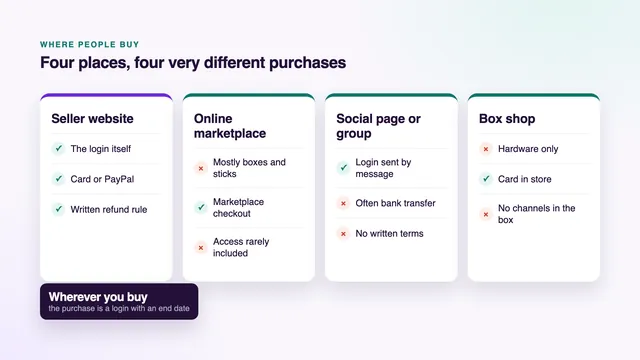
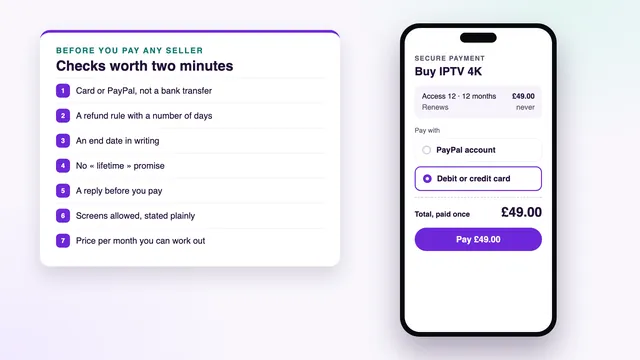
Offers that claim to last for ever, with no end date in writing, are a different product and a warning sign; the checks to run before paying a seller online explain why.
Keep the link to yourself
With the username and password built into it, the M3U link is a whole login in a single line. Anyone holding it can load your plan, and every channel they open takes one of your screens. On a one-screen plan, a stranger watching can knock your own picture off.
- Never paste it into forums, comment threads, group chats or social posts, not even to ask a setup question.
- Avoid screenshots of a player’s settings or account page: the link or the password often shows in full.
- When you need help, send details only to the team, who already hold them, or blank out everything after
username=. - Delete the playlist from any device you sell, give away or send back to a shop.
Why free playlists found online stop working
Search for an M3U list and pages promising fresh links every morning come up at once. Most are built from somebody else’s login: a paid plan copied into a public post, or addresses lifted from other lists and stitched together. Whoever posts the list has no say over the server behind it and owes nobody an answer.
Why they go dark within days
- The owner of the login, or the seller behind it, sees hundreds of strangers connected and changes the password. Every copy of the list dies in the same minute.
- A good share of the addresses are already dead on the day the list appears, so channels open on a black screen.
- There is no guide link, no end date and nobody to ask when a channel fails.
- The screen limit of the original login is split between everyone who found the post, so channels drop at busy hours.
The risks that come with them
- The pages that host them are often thick with pop-ups and fake download buttons.
- Some ask you to install an unknown app or APK to unlock the list. Unknown APKs from forums can carry malware; install players from the device’s app store or, on a Fire TV stick, by the route sent with your login.
- Some ask for a card number to confirm your age or to pay a small fee, on a page you know nothing about.
- Every address in the list sends your device to a server run by someone you do not know, and that server sees your home’s internet address.
That is the plain case for paying: a seller with a written end date, a refund rule and a team that replies keeps the link working until the date you were given. Here, a full refund is due when the details never reach you, or when no screen shows a picture even with the team’s help, provided you ask within 7 days (the refund policy in full). How quickly the message lands after checkout is explained in the guide to instant delivery.
Frequently asked questions
Can I buy IPTV playlist access without the Xtream login?
There is nothing to pick: every order includes both in the same message, for the same price. They open the same plan, so use whichever your player prefers and keep the other for later.
Can I use the playlist and the Xtream login on the same TV?
It works, but it only clutters the menu. Both open the same plan, and a channel playing from either counts as a screen, so keep whichever the player handles better and delete the other.
Can I download the M3U file and keep it?
You can, but it gains you nothing. Every address in the file still asks the server, so a saved copy stops on the end date like the link does, and it misses any change made to the list after you saved it. Point the player at the link instead.
Why does the programme guide show the wrong times?
The listings are in UK time, GMT in winter and BST in summer. Check the device’s time zone first, then shift the grid with the player’s EPG time offset setting, usually by one hour.
Will my playlist link change during the plan?
Only if the password is reset, which the team does when you ask, for instance after a leak. The new link then replaces the old one on every screen. A fresh order after the end date also brings new links.
How many screens can use the playlist at once?
One with Access 3, Access 12 and Access 24, two with Access 12 Duo. You can load the link on several devices in your home, but only that number can play at the same moment.