Buying guide
Buy IPTV with PayPal: the Checkout from Buy Button to Receipt
To buy IPTV with PayPal here, you never type a card number into a chat or into our site: you open the secure payment link the team sends, sign in on PayPal’s own page and approve one amount in pounds. This guide follows that path from the Buy button to the receipt in your inbox, then covers what we see on our side, the payment request no genuine seller makes, what to look up in PayPal’s terms and how a refund travels back to your PayPal account.
How PayPal fits into an order
An order here starts as a short conversation, not a form. The Buy button writes the plan and its price into a WhatsApp message for you, the team answers with a payment link, and the money moves on a page run by the payment company. PayPal is one of the choices on that page, next to paying by debit or credit card.
PayPal can be used in two ways. With an account, you sign in and approve, and PayPal pays from whatever you have linked to it. Without an account, PayPal may let you enter a debit or credit card on its own page, depending on what it offers you on the day. Either way the card number is typed into PayPal, not into a message and not into anything we run.
| With a PayPal account | With a card used through PayPal | |
|---|---|---|
| What you need | Your PayPal sign-in and any extra check PayPal asks for | A debit or credit card, where PayPal offers to take one |
| Where you type it | PayPal’s own page or the PayPal app | PayPal’s own page |
| What reaches the seller | The amount and the email address on your account | The amount and the email address you give PayPal |
| What the seller never sees | Your password, card number or bank details | The card number, its expiry date or its security code |
| Where a refund goes | Back to that PayPal account | Back through PayPal to the same payment |
Whether you buy IPTV with PayPal or by card, the price is the same and so is what you receive. The plan we suggest for most homes is Access 12: £49 for 12 months, which comes to £4.08 a month or about 13p a day. The four IPTV packages compared sets out the length, screens and cost per month of each one.
Buy IPTV with PayPal: the steps after you tap Buy
The steps below assume a phone with WhatsApp. Ordering by email changes only the first two, as the note after the list explains.
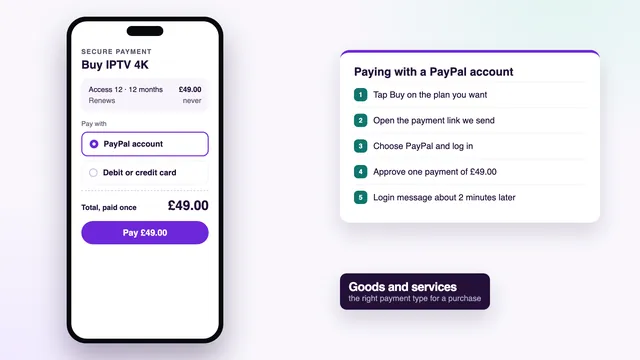
- Open the plan cards on the home page and tap Buy under the one you want. WhatsApp opens with a message that already names the plan and its price, for example « Access 12 (12 months, £49) ». Send it as it stands.
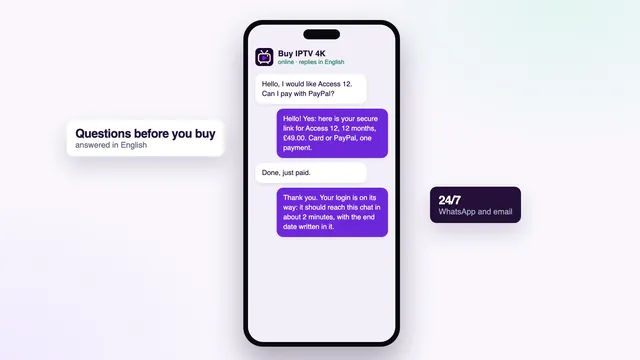
- Add a line saying you would like to pay with PayPal. The team replies in the same chat with a secure payment link set to that exact amount.
- Open the link. Before anything else, look for a secure https address and check that the total matches your plan: £49.00 for Access 12, £29.00 for Access 3.
- Choose PayPal. PayPal’s sign-in window or app opens. Sign in there and nowhere else: nobody on our side ever needs your PayPal password.
- Read the summary PayPal shows, pick how PayPal should fund the payment if it asks, then approve.
- PayPal confirms on screen and emails a receipt to the address on your account. The payment shows as confirmed on our side at the same time.
- About 2 minutes later, the login message lands in the same WhatsApp chat, or by email if that is how you ordered.
Prefer email? Write to [email protected] with the name of the plan and the word PayPal. The payment link comes back by email and steps 3 to 7 stay the same. How to buy IPTV from choosing a plan to the first channel covers the order as a whole, including setting up the player.
Three things to read on PayPal’s screen before you approve
- The amount. It should be the plan price in pounds, the same figure that was written into your WhatsApp message, with no second line added.
- A single payment. Our plans never renew by themselves, so the screen should not ask you to agree to future or automatic payments. If it does, stop and ask the team before approving.
- The kind of payment. It should be a purchase of a service. Anything that suggests sending money to a person you know is covered in the warning section further down.
What the seller receives when you pay through PayPal
PayPal sits between your money and the seller. When you approve, the seller learns three things: that a payment arrived, how much it was, and the email address linked to the payer. That is enough for us to match the payment to your chat and send the login.
What does not travel to us: the card number, its expiry date and security code, your bank account, your PayPal password and any code PayPal sends to your phone. All of that stays inside PayPal. For a first order with a seller you have never used, that separation is the main reason to pick PayPal.
If you buy IPTV with PayPal and later wonder what we hold about the order, the privacy page explains what is kept and why.
Requests that do not come from a genuine seller
Since PayPal already holds your details, a seller has no reason to ask for them. A message asking for your PayPal password, a code from a PayPal text, or a photo of a card is not part of any real checkout, whatever name the sender uses. Close the chat and check with us through the contact page before doing anything else.
Why a « Friends and Family » request is a warning sign
PayPal keeps paying for something you buy apart from sending money to people you know. The second kind, labelled Friends and Family, is there for splitting a bill or sending a present to someone you trust. It is not meant for buying anything.
So a seller who asks you to switch to that option, to mark the payment as a gift, or to send money to a personal email address instead of using a payment link, is asking you to step outside the buying process. Treat it as a warning sign. Do not pay until you have read what PayPal’s terms say about that kind of payment.
Our link is set up as a purchase from the start. The team never asks you to change the payment type, and never asks for money by bank transfer, gift card or crypto.
Other signs worth a second look
- Payment accepted only by bank transfer, gift cards or crypto.
- A « lifetime » plan with no end date written anywhere.
- No refund rule at all, or one that never states a number of days.
- Silence when you ask a simple question before paying.
Each of these, and a few more, is worked through in the checks to run before paying any seller online.
What to read in PayPal’s own terms
PayPal decides what its buyer protection covers, and its rules on digital services and access plans are its own to set and change. This guide does not tell you what is covered, because the only reliable answer is the version of PayPal’s terms in force on the day you pay.
Before a first purchase, look up these points on PayPal’s website:
- whether a payment for a digital service, with nothing posted to you, is eligible for buyer protection;
- how many days you have after paying to open a dispute;
- where disputes are opened in your account and what PayPal asks you to provide;
- how PayPal treats personal payments sent to people you know;
- how a refund reaches you when PayPal used a card to fund the payment.
Screenshot or note the parts that matter to you. If PayPal’s rules and ours ever seem to point different ways, raise it with the team before you pay rather than after.
Refunds back to PayPal within the 7-day rule
The rule is short. Within 7 days of paying, you get the full amount back if the login never arrived, or if nothing displays on any of your screens even after the team has helped you set it up.
Two cases fall outside it: changing your mind once the login works, and a home connection too slow for 4K when the speed needed was set out before you paid. That figure is about 25 Mb/s per 4K screen, steady and measured on the device itself.
| What happened | Inside the 7-day rule? | Where the money goes |
|---|---|---|
| The login message never came | Yes | Back to the PayPal account you paid from |
| Nothing plays on any screen, even with the team’s help | Yes | Back to the PayPal account you paid from |
| Everything works, but you have changed your mind | No | No refund |
| 4K stutters on a line below the speed explained before paying | No | No refund |
| You ask for the first time after day 7 | No | No refund |
A refund goes back to the PayPal account the payment came from, never to another account and never by another method. PayPal then shows it in your activity. How quickly it appears, and where it lands when a card funded the payment, is up to PayPal. The full wording is on the refund policy page.
The receipt email and what to keep
PayPal emails a receipt to the address on your PayPal account as soon as the payment goes through. It shows the amount, the date, who was paid and a transaction ID. That ID is the quickest way for us, or for PayPal, to find the payment again.
Keep three things together, in one folder or under one label in your inbox:
- the PayPal receipt, with its transaction ID;
- the WhatsApp chat or email thread where you chose the plan and received the payment link;
- the login message, which carries your end date.
Keep them at least until that end date. Between them they answer most questions in one go: whether a refund is still possible within the 7 days, which plan you bought, and what you paid. Each time you buy IPTV with PayPal again, a new receipt joins the folder, because a later order is a fresh purchase with a new login.
Sending us a reference
If a payment needs looking into, send the transaction ID and the time you paid. Crop out anything else on the screen, such as your balance or other purchases: the ID and the time are all the team needs to find it.
PayPal or card: picking the checkout that suits you
Both routes open from the same payment link and end with the same login message. The choice comes down to habit and what you already have set up.
- PayPal suits you if you already use it, would rather not type a card number on a page you have not seen before, or like to keep every online purchase in one list.
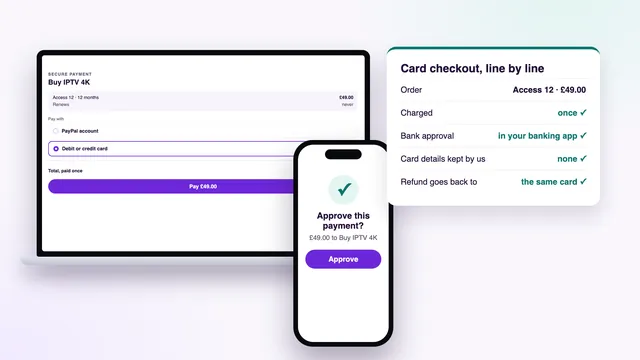
- A card suits you if you have no PayPal account and your banking app approves payments in a tap. Paying by debit or credit card has its own guide, covering bank approval, the statement line and chargebacks.
Neither choice changes the timing: what instant delivery means in minutes applies to both. Nor does it change the access: Access 3, Access 12, Access 12 Duo and Access 24 share the same channels, library and picture quality, and differ only in length and screens.
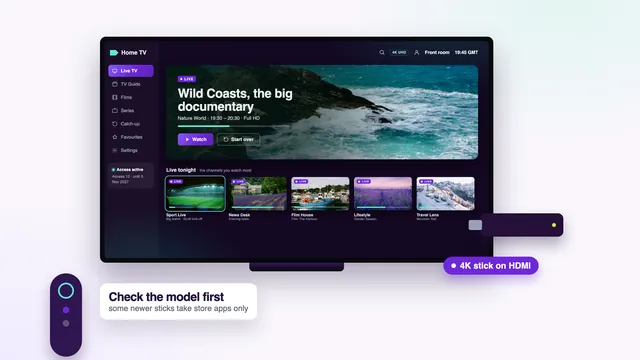
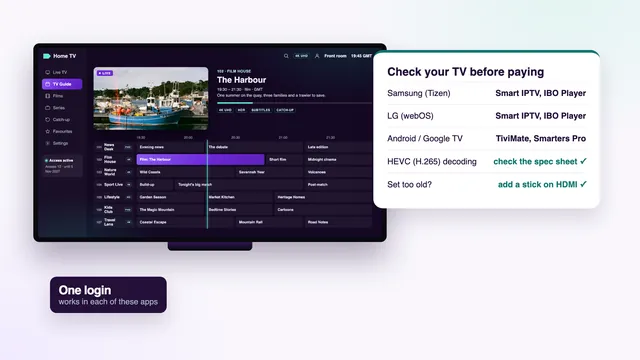
If you have not settled on a screen yet, read what to check on a Fire TV stick or which players a Smart TV can run before paying. When you are ready, you can buy IPTV in a single checkout from the home page.
Frequently asked questions
Can I buy IPTV with PayPal on every plan?
Yes. Access 3 (£29), Access 12 (£49), Access 12 Duo (£79) and Access 24 (£89) can all be paid through PayPal. The figure on PayPal’s screen is the plan price in pounds, with nothing added.
Do I need a PayPal account?
An account is the simplest route, since you only sign in and approve. Where PayPal offers to take a debit or credit card without an account, that works too. In both cases the card details go into PayPal’s page and never reach us.
Will the payment repeat next year?
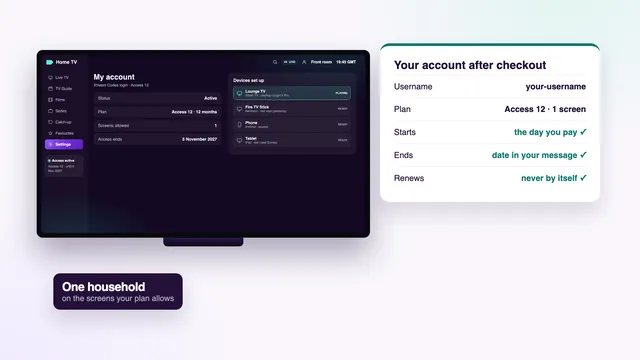
No. It is one payment with no automatic renewal, and access stops on the end date in your login message. To carry on, you place a new order and receive a new login for the same apps.
Would your team ever ask me to send money as a personal payment?
Never. Our payment link is set up as a purchase, and nobody on the team will ask you to change the payment type or pay a personal address. If someone using our name asks, check with us through the contact page before paying.
What if PayPal shows my payment as pending?
The login is sent once the payment is confirmed, so a pending payment holds it back. Send the team the transaction ID from your receipt and they will tell you what they can see. Do not pay a second time while the first is still pending.
Can a refund go to a different PayPal account or to my bank?
No. Refunds under the 7-day rule go back to the PayPal account used for the payment. If that account has been closed since, tell the team and ask PayPal how it handles a refund to a closed account.